
Sora: user guide
Sora is a digital reading platform that allows pupils to borrow and read ebooks and audiobooks from the College’s online library. Pupils can access Sora on a computer, tablet or smartphone, making it easy to read anywhere, at any time. Through the app, pupils can explore a wide range of titles, borrow books instantly and return them automatically when they are finished.
How to download the Sora App:
- On your phone, go to your App store and search for Sora. Look for the plane!
- On a computer or Chromebook Google Sora or use this link: Sora


How to find Swanmore:
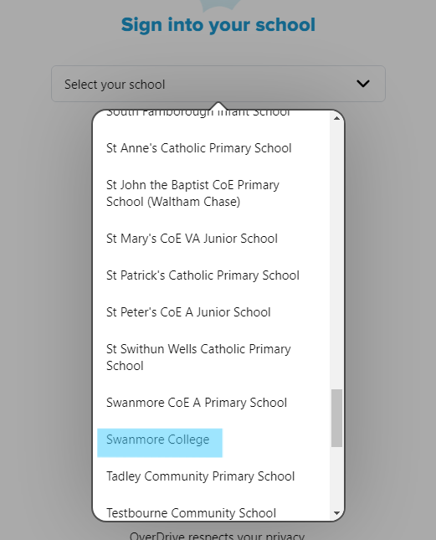
Search for Hampshire School Library Service; if this isn’t listed, click ‘Not your school?’ and scroll down to Swanmore College.
Use the drop down box to select Swanmore College
How to sign in:
- Use your Swanmore College gmail account to sign in.
- Students and staff can make your own account.
- Use your school gmail password
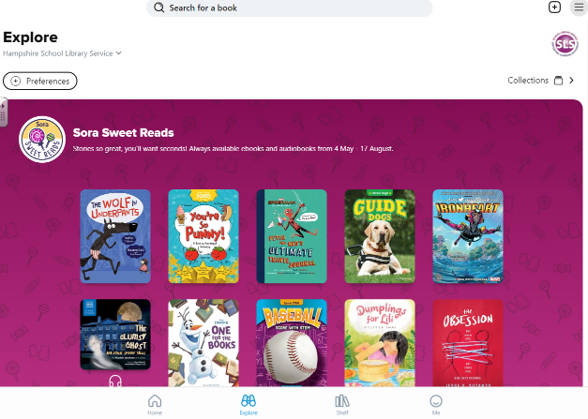
Exploring Sora:
- This will be the first page you see.
- Click on the binoculars to search for books.
- Click on ‘Shelf’ to find your current loans
- Click ‘Me’ to view your history.
Useful Information
- Unlimited numbers of people can take out comics and magazines at the same time, and you can find ‘back issues’ as well.
- Only two items can be withdrawn at once.
- If a title states ‘place hold’, someone else is currently reading the book. When you place the hold, you will be given an estimate for when the book will be available.
- The student’s log in dictates your year and therefore the books which can be borrowed, so a login of 25smithp cannot borrow T+ books, but 23smithp can.
- The font type and size can be changed.
- Sora Sweet Reads: A number of books available to absolutely everyone from May until mid August. This is a once a year event, not a rolling package.
- Please return a book when you finish it so others may read it!